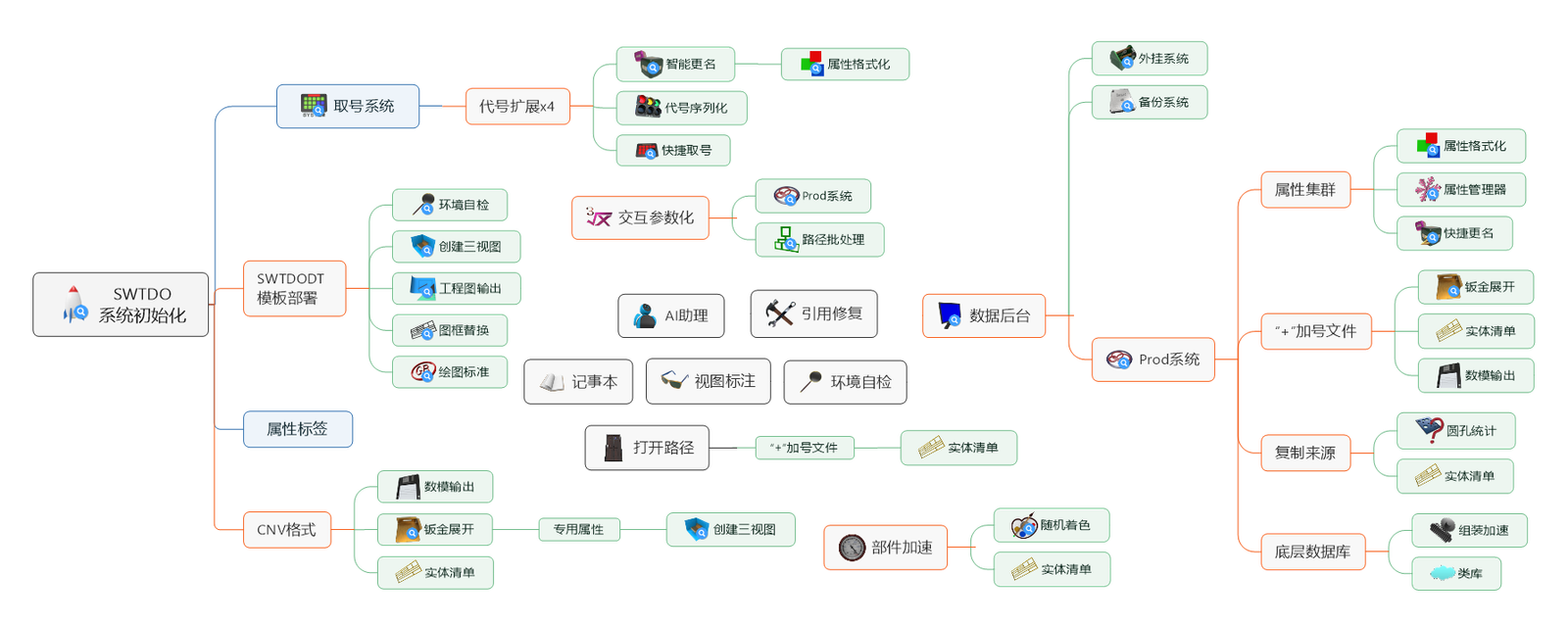
System initialization
System Initialization
GetNo
GetNo
SmartRename
SmartRename
QuickRename
QuickRename
Create3View
Create3View
Prodsys
Prodsys
DrawingOpt
DrawingOpt
ModelOpt
ModelOpt
Path batch processing
Path Batch
N-import
N-import
ToolHub
ToolHub
SMOutput
SMOutput
BoltList
BoltList
SpeedUP
SpeedUP
SetColor
SetColor
ViewAnn
ViewAnn
Bodylist
Bodylist
Propformat
Propformat
BackUpSys
BackUpSys
DrafStandards
DrafStandards
TitleBlockRep
TitleBlockRep
AIAsst
AIAsst
Self Test
Self Test
PropManager
PropManager
Serialize DWG No
Serialize DWG No
Help
Help
FixRef
FixRef
OpenPath
Open Path
QuickDwgNo
QuickDwgNo
DataControl
DataControl
Basic Tutorial

Open Assembly – ①PropFormat, ②SmartRename, ③Create3View, ④DrawOut, click each one.
One more thing: all forms have online documentation.

※ Forum Account

Unrelated to TDO usage, it provides resources for mechanical design, such as material libraries, weldment profiles, feature libraries, sheet metal libraries, electronic component libraries, DWG symbol libraries, etc. This account is manually added by our company, different from general registration.
Extension pack download: https://www.mezbw.com/forum-36-1.html

※ SWTDO Software Account

Both network and node-locked versions have a software account. For node-locked users, this account is valid for 1 month and will be locked upon expiration. Simply put, it is used for refund processing.
The network lifetime version comes with 1 node-locked activation code, which is for emergency use when you have no network. This activation has no expiration.

Issues & BUG Handling

  1. Have you read the prompts? SWTDO is different from overseas software; all prompts are in Chinese, written by native Chinese speakers.
  2. Please upgrade (pay attention to the version number; all form titles have the version number, and we only handle issues for the latest version).

Still can’t resolve it?

  • E-commerce Customer Service: Handles sales issues, not capable of providing technical guidance.
  • QQ: 14136837: Handles installation and BUGs until normal operation; does not provide operational guidance.
  • QQ Group [Recommended]: 590761815. No other discussion groups at this time. Usually, all questions are answered. We also release some tool principles only in this QQ group.

BUG Reporting Guidelines:

The software copyright, trademark, and full UI art copyright of SWTDO are exclusively held by our company, Beijing Lanyue Technology Co., Ltd. Please use it only within the scope permitted by law.
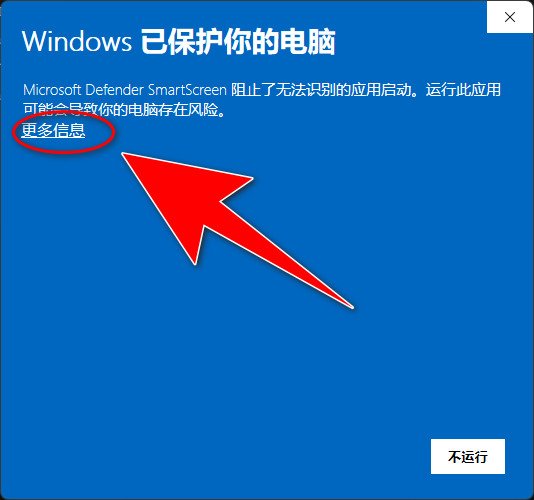
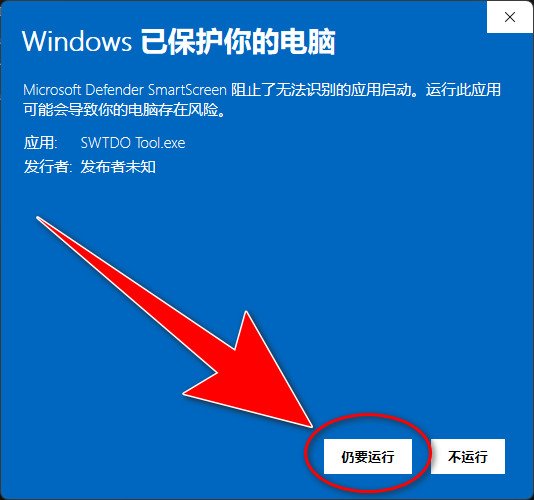
This software is genuine and domestically produced, meeting any enterprise legal requirements. Any firewall alerts are false positives. What is a firewall?

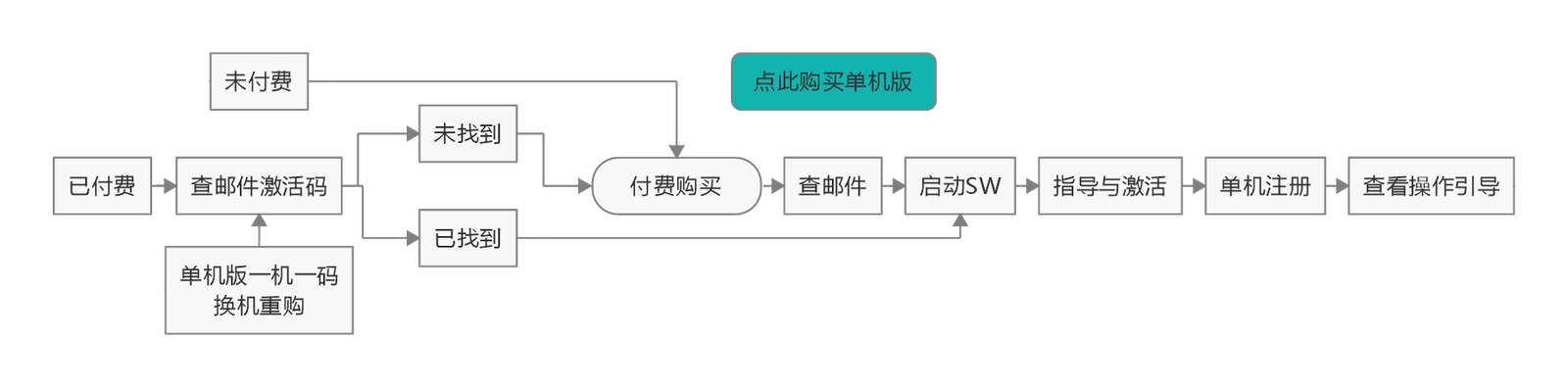
SWTDO Node-Locked Activation

Machine Code:

Everyone has fingerprints, etc., as a unique identifier. Computers also have their own unique identifier, called the machine code.
Obtaining the machine code must be done on the user’s computer.

Activation Code:

Using the machine code and encryption software, you can obtain an activation code.
Obtaining the activation code must be done by the encryption software. The encryption software is unique to our company and cannot be replicated. That is, only our company can generate it.

Node-Locked Activation: Steps here
1. The user extracts the machine code from their computer (use the one you want to activate) and sends it to us.
2. We generate an activation code for that machine code using the encryption program and send it to the user.
3. The user enters the activation code into the software, which generates a valid token, granting usage rights.

No two machine codes are the same, so each PC’s token is different.
The machine code is unrelated to programs, instructions, code, or the operating system on the PC. Like a vehicle identification number, it is etched into the hardware. Therefore, reinstalling the operating system does not affect the reusability of the activation code.

This process is not required for the network version.

The USB drive contains all component libraries from the following URL as of September 17, 2022, only to reduce download difficulty for users. It is unrelated to TDO usage, but the USB drive includes extension pack usage instructions.
USB drive content details: https://www.mezbw.com/thread-10657-1-1.html

  • No refund for node-locked version users who have received an activation code.
  • No refund if an invoice has been requested and has already been redeemed.
  • No refund after one month.
  • No refund if 1-on-1 guidance has been purchased and at least 4 hours of online guidance have been completed.

Otherwise, if you are not satisfied, don’t know how to use it, or don’t like the look, we support refunds regardless of whether it’s our fault. We don’t fight with users.

“I don’t have internet and need to activate immediately.” Please return it immediately. Our e-commerce will never stall. Be aware: problematic buyers are far, far more common than problematic sellers.

  1. Disable UAC, click here for method
  2. After downloading, please double-click setup.exe
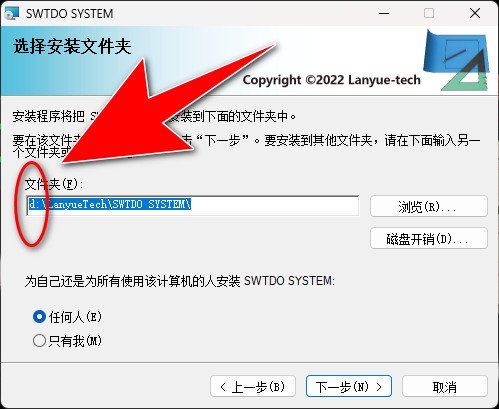
  3. Please do not install the software on the C drive.
  4. If a firewall blocks it, refer to the image.
  5. Some commands require SWTDO initialization before they can be launched. If multiple SolidWorks versions are installed, system initialization should be performed for each SolidWorks version.
    Steps: Launch SW – Tools – SWTDOInit – SystemInit
  6. SelfTest is the primary diagnostic tool for running SWTDO. Please pay attention to the prompts.

TDO involves 3 paths: software installation path, template deployment path, and workspace path. This software will create initialization files, database files, template files, etc. It is recommended not to use the C drive for any of these paths.

Recommendation: It is recommended that you master TDO before making personalized adjustments. TDO is fully customizable. During installation, simply click “Next” for maximum efficiency and accuracy. If you get stuck on a minor step and only solve a small problem without addressing the main issues, you will miss out on TDO’s 300 batch processing capabilities and its ability to eliminate 90% of your manual errors.

Launch SW – Help – Update Check, or click here

Download, extract, and install to the old path. That’s it.
There is no initialization process, no template path modification. Please do not assume any steps we haven’t explicitly stated. You don’t need to do a single thing.

  1. Launch SW – Tools – Options – Reset All
  2. Windows Control Panel, Uninstall

Windows Start Menu – SWTDO – DataControl – System Tools

New versions cannot use backups or system restores from older versions. Each version is specific. This is only used if you have issues with the new version and need to revert to an older version.

More Comprehensive Videos

				
					中国版:https://space.bilibili.com/647240799/lists


					海外版:https://swtdo.com/en/tdouiforvideo
				
			
SWTDO Guide (Ensure Windows Microsoft Store is available)
  • Others’ batch processing: file-based batch processing; TDO’s batch processing: part-based batch processing;
  • Batch processing that includes the designer’s subjective judgment, batch processing you can preset, batch processing using multiple tools in combination.
  1. TDO supports multiple batch processing methods including single selection, multiple selection, no selection, box selection, table forward selection (SW selected), part reverse selection (SyncSel), and FileType avoidance rules.
  2. Key point: TDO batch processing is not limited to the UI in the SW tab. It applies to at least 70% of all buttons across all forms and frameworks (when speaking freely, we say all commands).
  3. TDO has 5 batch processing frameworks: batch processing of assembly parts, batch processing of path components, batch processing of part entities, batch processing of assembly cut lists, and batch processing of faces in assemblies or parts.

Using the node-locked version as an example, after installation, activation, and normal operation, your computer will contain 9 components:

  1. License (not present in network version)
  2. Database files, configuration files
  3. SWTDODT templates
  4. Source code
  5. Registry entries
  6. (Enterprise Edition) Module database, base database
  7. (Enterprise Edition) Module license
  8. (Enterprise Edition) Shared configuration files
  9. (Enterprise Edition) Team templates

Upgrade:
(New version > Old version) will delete and overwrite #4. #1, #2, #3 remain in their original locations (#1, #2 are in C:\Users\[User]\AppData\Local\LANYUE-TECH)
(New version <= Old version) cannot be installed. Please manually uninstall TDO from Windows Control Panel and install again.

If you change the installation location during an upgrade, #4 will also be automatically deleted (may not happen if the installation location is on C drive). TDO will not be able to find #1, #2, #3, and you will need to use your activation email to redo #1, #2, #3.
If you happen to have made a system backup, you can use System Restore to import #1 and #2 and re-identify them. If #3’s location has not changed, it will be automatically recognized after importing #2.
We do not back up SWTDODT, and it is highly unlikely that you would simply discard templates you have put effort into modifying.

Uninstall:
#4 will be deleted (may not happen if the installation location is on C drive). #1, #2, #3 remain in their original locations. #5 is automatically cleaned up.

SelfTest only handles #3.

#6, #7, #8, #9 are automatically handled by server monitoring tools; no action needed.

TDO System Backup and Restore Usage

It is correct to make a backup before each upgrade.
When performing a System Restore, ensure the backup version matches the SWTDO version. That is, a newer software version cannot use an older version backup.

There are 2 purposes for backup:
1. To store your usage license
2. To restore previous data if the database or configuration files are corrupted during the upgrade process.

SWTDO = Program + Template (SWTDODT)The most important task during system initialization is template deployment. Key template files are listed here. Template files are independent of the program. After gaining a deep understanding of SolidWorks usage, you can create drawings of any form by modifying the following template files.Key Points:
  • It is recommended that you modify your custom templates based on TDO’s default template files.
  • Unless you are proficient in template configuration, please follow the advanced tutorial “Customize Your Company Template”. Forget any other template tutorials you have learned; it is sufficient for over 90% of companies.
  • Only users proficient in template configuration can directly replace template files with ones of the same name.
If any custom-modified template malfunctions, please delete the corrupted template file and launch SelfTest to restore the SWTDO default template.
Command NameCorresponding Template File (assuming your template path is D:\SWTDODT)
DrafStandardsD:\SWTDODT\Drafting Standards
ReplaceFormatD:\SWTDODT\Sheet Formats
Create3ViewA1-A4D:\SWTDODT\Document templates
BOMD:\SWTDODT\Bom templates
CutListD:\SWTDODT\Weldment Cut List Templates
GetNoSysNewD:\SWTDODT\Document templates
SMFlattenSM Layout CompositeD:\SWTDODT\Document templates\OneFile.DRWDOT
DrawOutDXF, DWG MapD:\SWTDODT\DWG Map
PropManagerD:\SWTDODT\Custom Property Files
Process FieldD:\SWTDODT\Custom Property Files\Process.txt
FinishD:\SWTDODT\Custom Property Files\Finish.txt
Paint FieldD:\SWTDODT\Custom Property Files\Paint.txt
PartTypeD:\SWTDODT\Custom Property Files\PartType.txt
FileTypeNote! Cannot be manually modified; only modified during initialization.D:\SWTDODT\Custom Property Files\FileType.txt
  • Lightweight Components
  • Virtual Components
  • Suppressed Components
  • Unsaved Components
  • Toolbox Components
  • Temp Files

TDO’s workspace corresponds to SW System Options – File Locations – Referenced Documents.

Simple explanation: SW monitors any file that SW operates on, but it doesn’t have enough resources to store the relationships of every single file. Instead, it stores these relationships as file pointers within each file.
For general designers, file pointers have advantages but also serious drawbacks. Different versions also have some bugs. TDO’s workspace is like BeiDou’s monitoring range. Within this range, we can guarantee SW’s indexing rules. Outside this range are SW’s limitations, not TDO’s. TDO’s strict requirements ensure your work is foolproof.

SW has no authority to monitor Windows operations. Any copying and pasting may break SW file relationships. To put it simply, only amateurs use copy-paste to manage SW files.

Typical Counterexample (TDO will not work)

  • 10 parts in a project correspond to a single drawing file (containing 10 sheets).

TDO One-to-One Correspondence
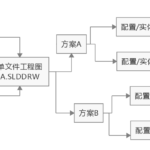
TDO's OnebyOne
TDO’s OnebyOne

Per component: one drawing, or 1 or 10 DWGs (multi-body/multi-configuration).

If the component is a multi-body:

Per component: one drawing (can contain 10 body drawings), 1 DWG (can contain 10 body layouts), or 10 DWGs.

If the component is multi-configuration:

Per component: one drawing (can contain 10 configuration drawings), 1 DWG (can contain 10 configuration layouts), or 10 DWGs.

Per assembly: can have 10 BOMs.

TDO Output = Drawings + BOM

We generally use underscores and spaces as file delimiters to separate DwgNo, Title, and Revision.

What is a delimiter? Code can use fixed characters to split a string and apply the resulting segments within the code. The delimiter’s task is to cut a string into 3 segments.

User application principle: In principle, the same string should not have duplicate delimiters, unless they are delimiters preset by the programmer. That is, TDO’s code presets may have duplicates, but users must avoid them. This is because the execution logic is preset by the code.

During batch processing, you can find TDO’s brake switch in the Windows system tray (bottom right). Left-click to stop the loop.

Please note: The brake key only works at a task’s loop iteration. It cannot abort program execution if the task has not completed its current loop. In most cases, the brake key does not stop immediately, but it will abort the batch process before executing the next component.

The brake key does not work for all batch processes; some batch processes are unaffected by the brake.

The following recommendations are based on completing SWTDO system initialization.
  Path Recommendation Filename Changeable AppendableSame-name Replacement 
 Default Template – Part D:\SWTDODT\Document templates\Part.PRTDOT Modify based on TDO default template No  
 Default Template – Assembly D:\SWTDODT\Document templates\Assembly.ASMDOT Modify based on TDO default template No  
 Default Template – Drawing D:\SWTDODT\Document templates\A4P.DRWDOT Modify based on TDO default template No  
 Document Templates D:\SWTDODT\Document templates  No Yes 
 DrafStandards D:\SWTDODT\Drafting Standards  No No Yes
 Macros D:\SWTDODT\Macros    
 Material Databases D:\SWTDODT\Material Databases    
 Sheet Formats D:\SWTDODT\Sheet Formats Modify based on TDO default template No Yes 
 Weldment Cut List Templates D:\SWTDODT\Weldment Cut List Templates  Yes Yes Yes
 Revision Table Templates D:\SWTDODT\Revision Table Templates    
 Blocks D:\SWTDODT\Blocks    
 Color Swatches D:\SWTDODT\Color Swatches    
 Custom Appearances D:\SWTDODT\Custom Appearances    
 Design Journal Templates D:\SWTDODT\Design Jounal templates    
 Design Library D:\SWTDODT\Design Library    
 Common Sizes/Annotations D:\SWTDODT\Dimension    
 Weldment Profiles D:\SWTDODT\Weldment Profiles    
 Custom Property Files D:\SWTDODT\Custom Property Files FileType.txt: Manual modification prohibited; can be modified via initialization file avoidance rules.   Yes
 Punch Table Templates D:\SWTDODT\Punch Table Template    
 Referenced Documents E:\WORK Please read “About Workspace & Project Folders”; modification not recommended.   
 DWG Map Template D:\SWTDODT\DWG Map\DWG Map TDO’s map template differs from common ones; recommend using ours.   Yes

Network version users are not restricted to a single PC. Some information synchronization is involved for seamless operation. [The following operations are only compatible with SWTDO 2025.0.43 and above, and the TDO version number must be the same on both old and new PCs.]

  • Old PC: DataControl – System Tools – System Backup, Export Back
  • New PC: DataControl – System Tools – System Restore

SolidWorks API depends on the runtime environment, such as part environment, drawing environment, assembly environment.
Launch TDO PropManager under Assembly A.
If PropManager is open (not closed) and you open Part B, directly using PropManager on Part B (or Assembly C) will cause some tools to malfunction.

Correct operation: Restart PropManager under Part B.

Key point: A command launched under a specific component can only be guaranteed to function properly under that same component. Switching environments may cause issues.

Example 1: Launch command form from A, switch to B (without closing command form), switch back to A, continue using command form -> OK.
Example 2: Launch command form from A, switch to B (without closing command form), use command form under B -> NG.
Example 3: Launch command form from Assembly A, switch to Part B (without closing command form), use command form under B -> NG.

The above applies to most TDO commands, especially those involving command preloading, presets, and data queries.
The principle is exactly the same as why Windows requires a restart after installing patches.

Preloading examples: PropManager, QuickRename, Entity List, ReplaceFormat, SelfTest, Create3View …
Data query examples: ProdSys, BackupSys, Param Part, ClassLibrary, Fasteners …

Scroll to Top