Any command that Windows can run or macro that SW can execute can be launched.
Upload Categories
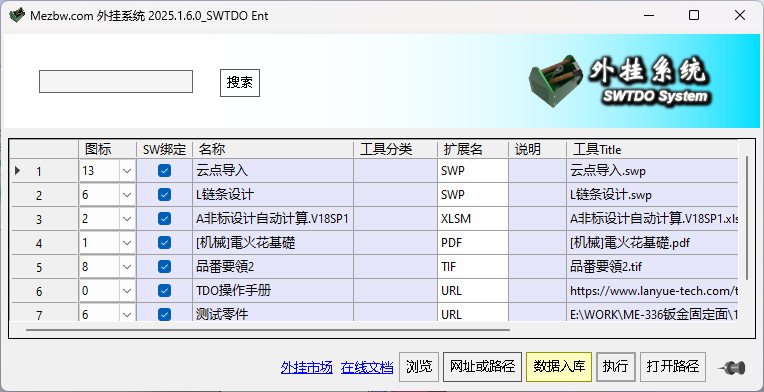
To integrate a tool into PluginSystem, a record is first created in the database. Then, a ‘Plugings’ folder is typically created under the SWTDODT deployment directory, and files are uploaded there. However, not all records require uploading:
Local path or URL: Only the path is recorded, no upload.
exe: Since most exe files are part of applications comprising multiple files, they are not uploaded. If upload is necessary, they must be encrypted using the TDO exclusive encryption tool from the plugin marketplace first.
Other tools: These are all uploaded. Note that some tools may consist of multiple files (e.g., PPT slide decks, image collections). You must upload not only the main executable file but also open the tool folder and copy all other files into it.
Standalone Operation
PluginSystem can run standalone without relying on SW startup.
Adding Portable Apps
For example, a Pantone color chart or a series of surface roughness sample photos.
First, upload one image, then open the upload path and paste the other photos into that folder.
Note: The default Windows 11 image viewer may not allow switching between images using the left/right arrow keys.
PluginSystem Backup & Migration
Aside from the database, all PluginSystem programs are stored in SWTDODT\Plugings. When migrating software to another PC, copy the Plugings folder and ensure the database tool path matches the Plugings path.
TDO External Menu
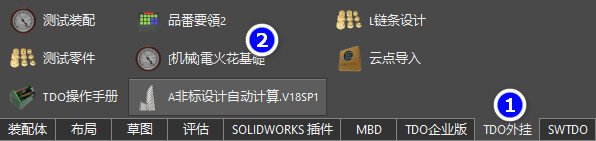
Basic description: PluginSystem acts as a data management table. The external menu is a menu bound to the SW main interface.
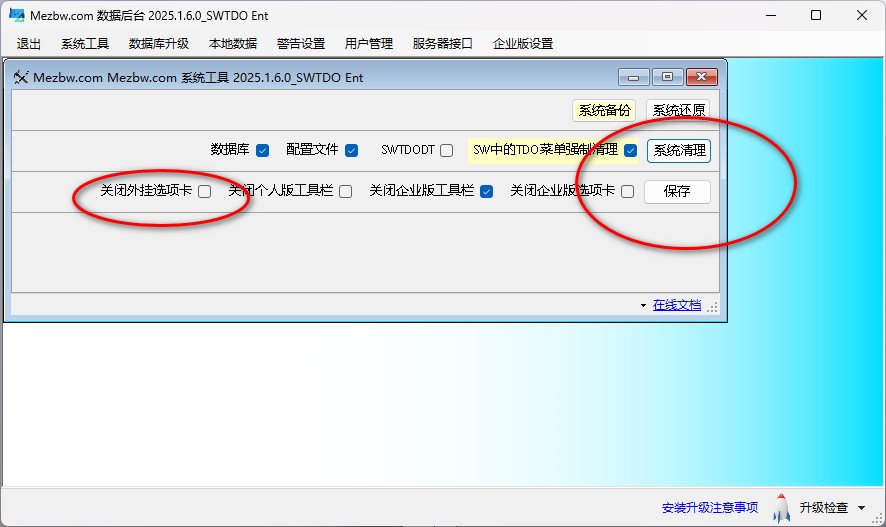
Cleaning external menus is supported in DataControl > System Settings.
TDO’s PluginSystem supports any file type. Therefore, the TDO external menu bound to SW can launch any file, including URLs and paths.
Icons only take effect after binding to SW. The order in which SW binding is checked determines the SW icon order.
Because SW has strict requirements for icon image formats, we provide several alternative images. Numbers represent the icon index.
Regarding the removal of the TDO external menu: Since SW menus are registered in the Windows registry, administrative privileges are required for complete uninstallation once the menu is loaded.