
Many companies treat a BOM as a table that appears after design is complete. They begin with templates, column counts, and file formats. A more reliable order is the reverse: identify who will use the BOM, decide which fields must exist and which should be removed, and only then choose the software and data model. Otherwise, the table may look complete while the real coordination problems remain hidden until purchasing, production, inventory, and assembly are already underway.
This guide presents a practical method for mechanical and industrial companies. The goal is to make the BOM a definable, filterable, and traceable data view instead of another manually maintained Excel file. It also explains how SWTDO connects properties, file categories, tag filtering, Prod lists, and production-file output into an executable workflow.
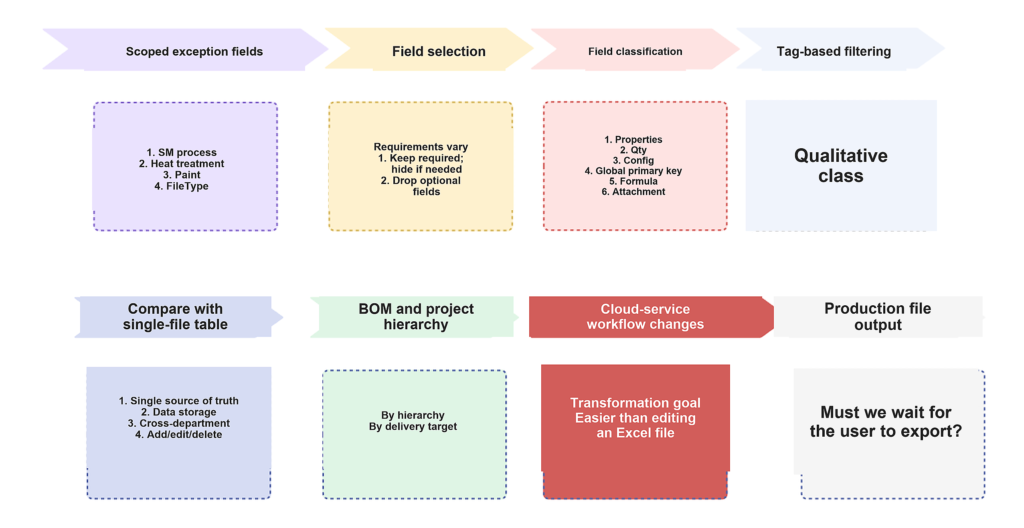
Start with the BOM user, not the template
Purchasing is often the most visible recipient of a BOM, but it is not the only user. Purchasing distinguishes standard parts, machined parts, sheet-metal parts, assemblies, and stock items. Production needs process and delivery information. Inventory needs to identify blanks, ready-made assemblies, and issued materials. Assembly needs to know which files and parts belong to a specific product configuration.
Design rarely stops communicating when a drawing is issued. If a purchaser, supplier, or machinist is unsure about a file, the question usually returns to the designer. The number and variety of downstream stakeholders determine how many useful data views the design team actually needs.
A BOM should therefore do more than list parts. It should let different departments derive their own results from one consistent data source. The traditional approach creates a master BOM and lets each department copy, filter, and delete rows. Once copying begins, version mismatches, quantity errors, and repeated clarification are inevitable.
Use BOM categories to support downstream work
Different downstream teams ask different questions. A total BOM is useful for archive and overall visibility. Production focuses on welding, molding, machining, and other processes. Purchasing focuses on purchased and standard parts. Inventory focuses on blanks and ready-made assemblies. Assembly focuses on delivery structure.
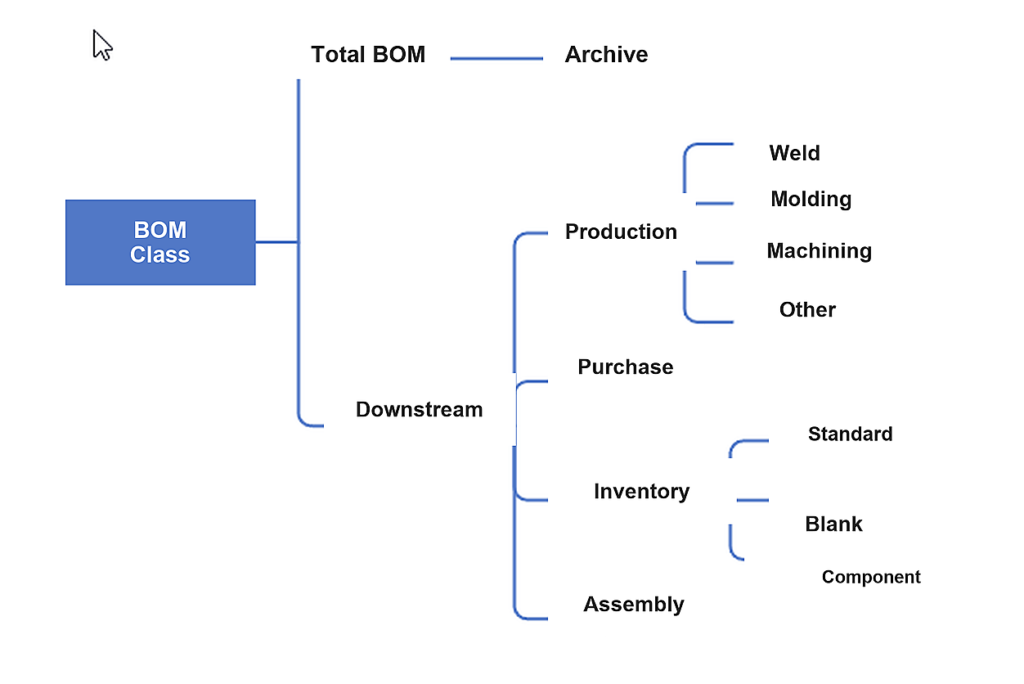
The objective is not to create an unrelated database for every department. Each department should filter the same underlying data by its own business conditions. When the source fields are stable, views can change with the workflow without rebuilding and recopying the entire table.
Let the company define the valid field range
“Make or Buy” is often implemented as a Boolean field, but real sourcing methods are rarely limited to two values. One company may use machining and purchasing only; another may involve prototypes, printing, molding, or casting. A software preset with twenty categories does not mean every company needs all twenty, and a hard-coded set of categories cannot represent every production model.
The available values should be defined by company administrators or design rules. Keep the fields the business uses and remove the rest. Field names, allowed values, and defaults should reflect actual processes, departments, and delivery methods rather than forcing the company to adapt to a software template.
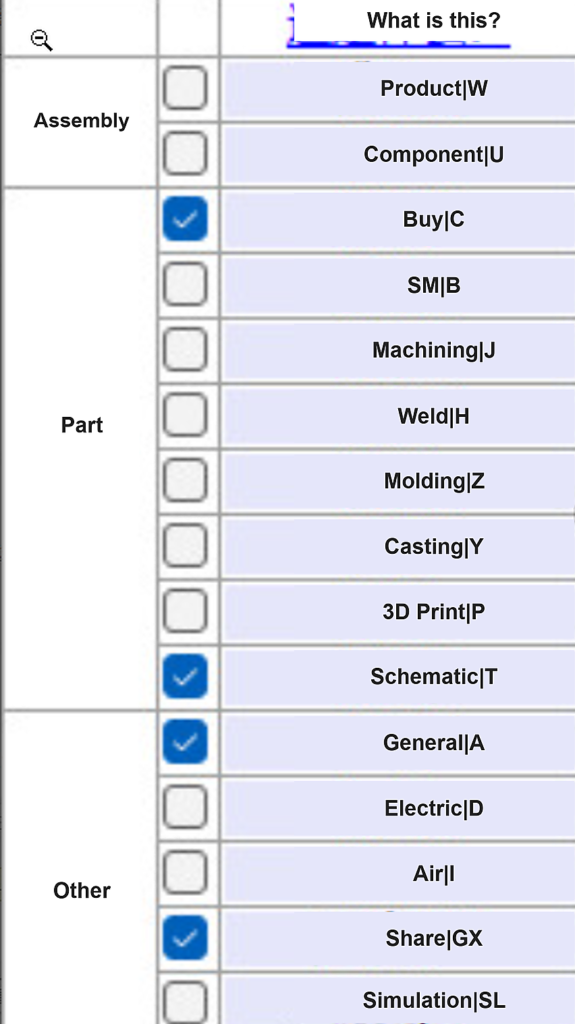
File categories follow the same principle. If a paint shop has only twelve approved colors and a passivation line has three oxidation finishes, design should be limited to those existing choices. The administrator defines the range; the designer selects within it. This prevents ad-hoc names from spreading and keeps later filtering, reporting, and production-file output stable.
SWTDO exposes fields such as sheet-metal finish, surface finish, paint, heat treatment, body process, file category, and part category for company-level customization. Administrators control the allowed values; designers make valid selections. This is more reliable than documenting the rules in a verbal briefing and hoping they are followed.
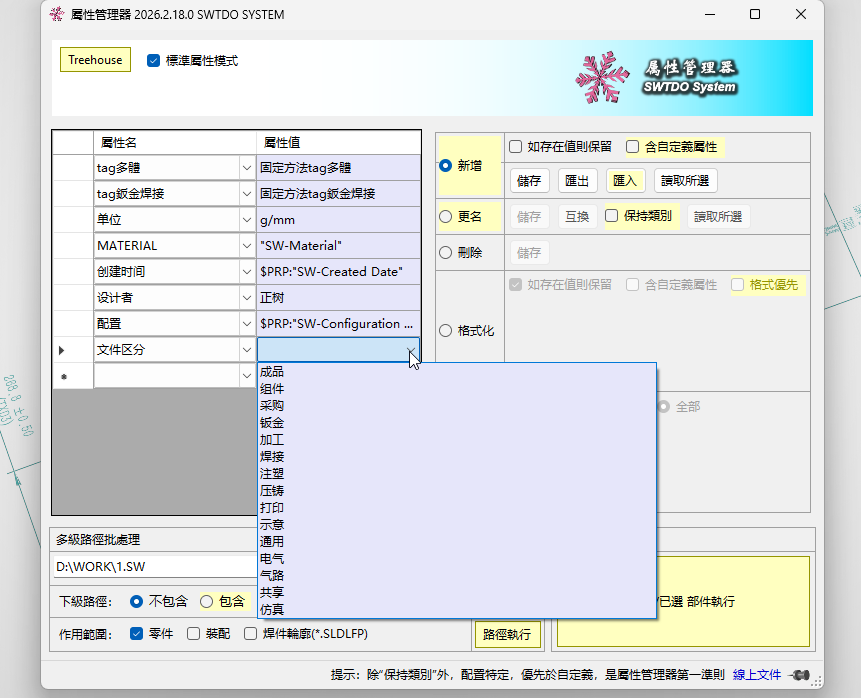
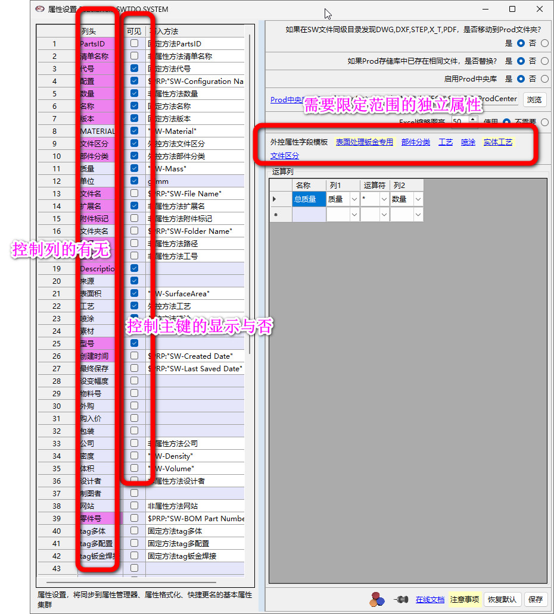
More fields do not automatically make a BOM more professional. More fields also create more opportunities for omissions, incorrect values, and different interpretations. A company needs the smallest field set that covers the current workflow, not a universal template that can never be completed consistently.
Remove fields that do not serve the business
A sheet-metal company may not perform heat treatment. A small workshop may need only a part name and quantity. If the software offers twenty fields, the company should not force designers to fill all twenty merely because they exist. Irrelevant fields should be deleted or hidden rather than left in place with an informal instruction not to use them.
Field count should not be fixed by code or inherited forever from an old template. The company understands its own processes and delivery scope, so it should control which fields remain. Add fields when the business needs them; remove fields that only create invalid data.
Properties describe data that belongs to the part file. Quantity is different. The same part can appear in different quantities in different assemblies, so quantity must come from the assembly. Subtotal, mass total, and similar values are calculations, not static properties of the part. Configuration must exist to distinguish variants, but it can be hidden when not needed.
The word “version” is too ambiguous in manufacturing. Ask ten designers what a version means and you may receive ten different answers. SWTDO uses configuration for model variants and Prod list for the BOM-oriented list managed separately from the SolidWorks drawing BOM. Clear terminology is a prerequisite for reliable collaboration.
Consider an assembly that represents a shoe rack with different shoe sizes. The size is a configuration; the brand alone cannot uniquely identify the item. The same logic applies to file name, configuration, global key, and quantity in a BOM. Identity cannot depend on human memory or on the assumption that every part occurs only once.
Separate fields by data source
A useful BOM distinguishes properties, quantity, calculations, configuration, global key, conditional values, and attachments. Properties come from part files. Quantity comes from assemblies. Calculations produce summaries. Configuration distinguishes variants. The global key guarantees storage and retrieval integrity. Conditional fields derive results from geometry, process, or file characteristics. Attachments record items required for delivery or assembly that are not part of the drawing itself.
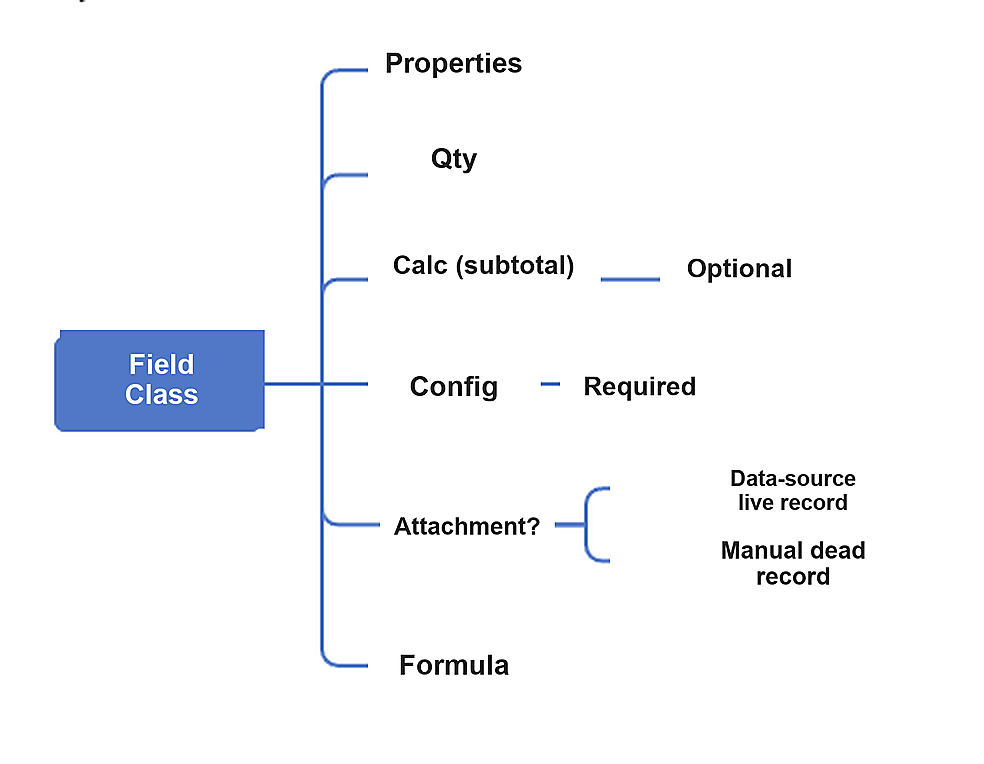
Conditional values can be generated from geometry and production characteristics such as sheet metal, welding, multiple bodies, or multiple configurations. Writing the result into a property at the source is more stable than asking every department to repeat the same decision in a spreadsheet.
Attachments are often overlooked. A wrench supplied with furniture, an assembly fixture, or an installation jig may not be part of the main design drawing, but it must still ship. An attachment is a static business record, while part properties are live records updated from files. Both can appear in the same BOM view, but their sources must remain distinguishable.
Turn a master table into a tag-driven data view
When every file carries stable property tags, a BOM no longer needs to begin as a copied master table that is then edited row by row. Select the sheet-metal file category, for example, and all matching files enter the same view. Select a paint color or assembly type and create another view.
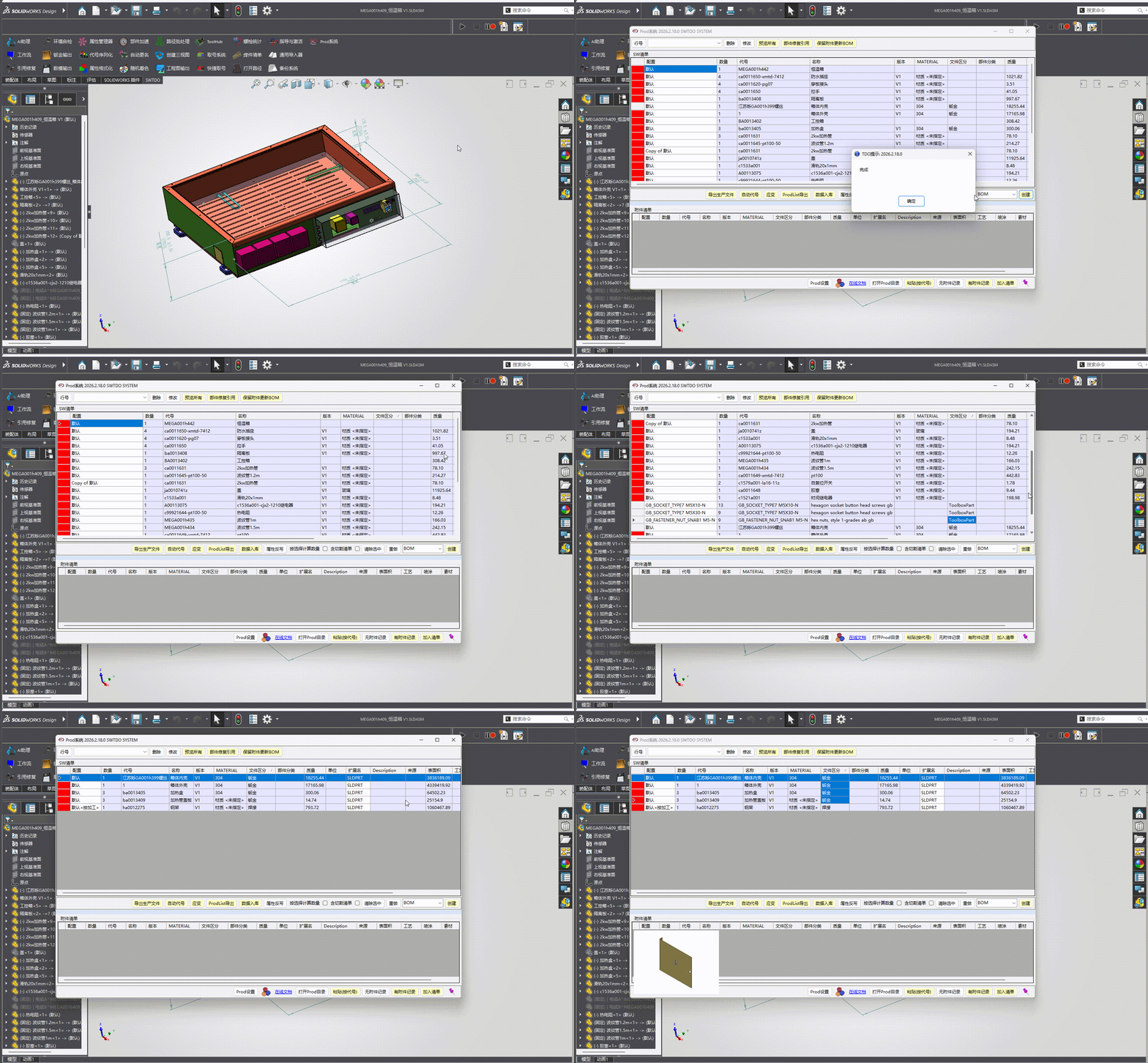
Tag filtering is more than a convenient query. It lets one source of truth serve design, purchasing, production, inventory, and assembly at the same time. Views can be created as needed, while sorting and filtering are handled by fields rather than manually maintained Excel copies.
Compared with an Excel-first workflow, the practical differences are:
- Fields follow the single source of truth and do not require a second design pass.
- Each BOM view can be stored and reused independently.
- Cloud data can be exposed to other departments for cross-functional work.
- A write-enabled BOM changes the actual source rather than a copy.
- Adding, editing, or deleting data can propagate through the same source.
For related setup details, see SWTDO’s property formatting guide and Prod Center guide. Companies with existing spreadsheets can use the Universal Importer to migrate gradually instead of replacing every workflow at once.
Design BOM levels around delivery objects
One project can contain multiple assemblies, and one assembly can generate multiple BOMs. A hierarchical table is useful for showing structure, but it is not always the best direct representation of purchasing and delivery. It may match the design tree, yet manual errors increase quickly when quantities are scaled, multiple people edit the data, or identical parts appear in several places.
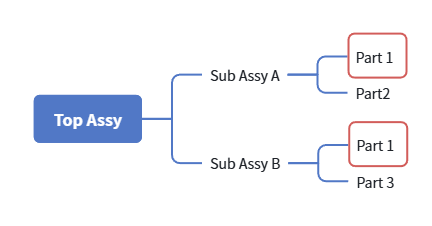
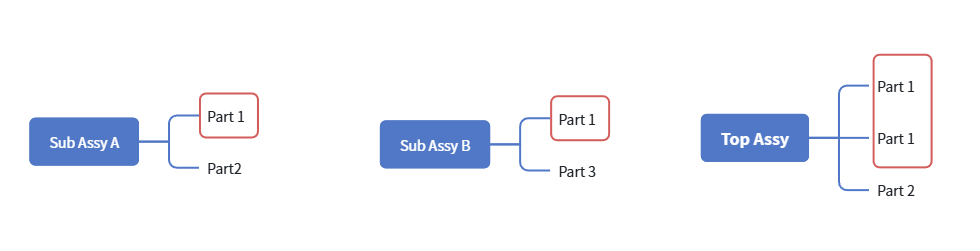
Separate the structural view from the delivery view. The structural view preserves parent-child relationships and helps readers understand the product. The delivery view answers what a specific downstream team needs. Because properties and source data already belong to the files, a BOM can be treated as a query result rather than another manually maintained master list.
A total BOM remains useful for archive and overall checking, but it does not have to solve every delivery problem. Create BOMs on demand instead of starting with one master table and editing it repeatedly.
Make a cloud BOM easier than editing Excel
Adoption depends less on technical sophistication than on whether the new workflow is easier than the old habit. Editing Excel is fast: open the file, change a few cells, and save. If every BOM change requires starting SolidWorks, opening an assembly, and locating a drawing table, users will resist even if the underlying data is more accurate.
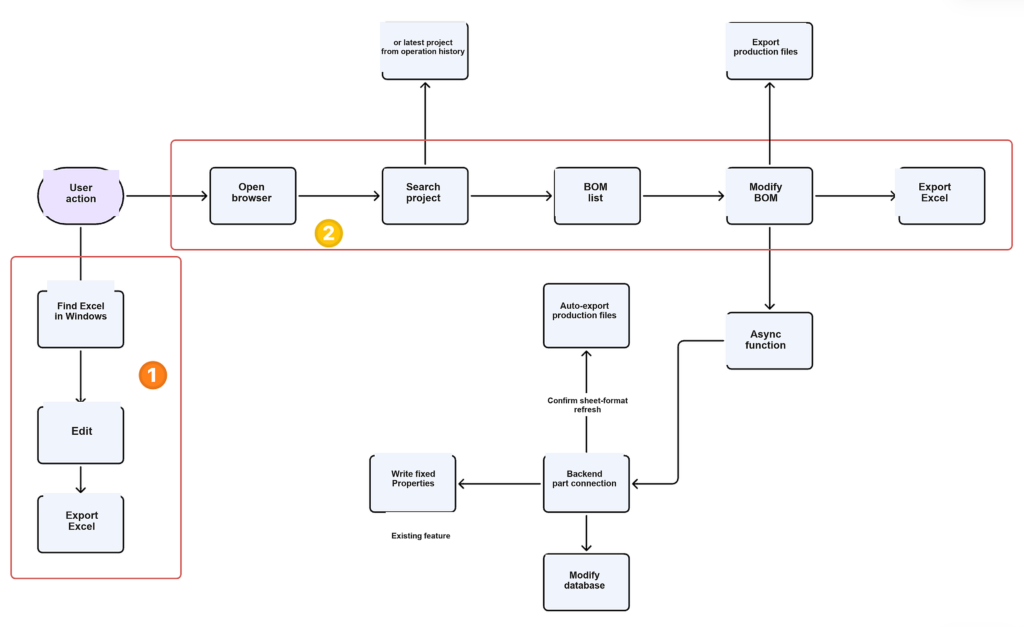
The advantage of a cloud workflow is that it can bypass local model loading. Existing data tables can be queried and edited without opening every part and assembly. Property changes can be separated from model export. Results can then be written back to the single source of truth. If the experience is at least as convenient as editing Excel, users have a reason to adopt the more consistent method.
The workbench should hide synchronization, validation, and file generation behind a simple business interface. Users make engineering decisions; the system enforces consistency.
Generate production files by rule
Downstream teams often ask for different file formats. In practice, DWG/DXF, PDF, STEP, Excel, and a limited number of JPG files cover most requirements. Model formats can be exported automatically. Drawings need design confirmation for layout and refresh. Other production files can be generated entirely by rule.
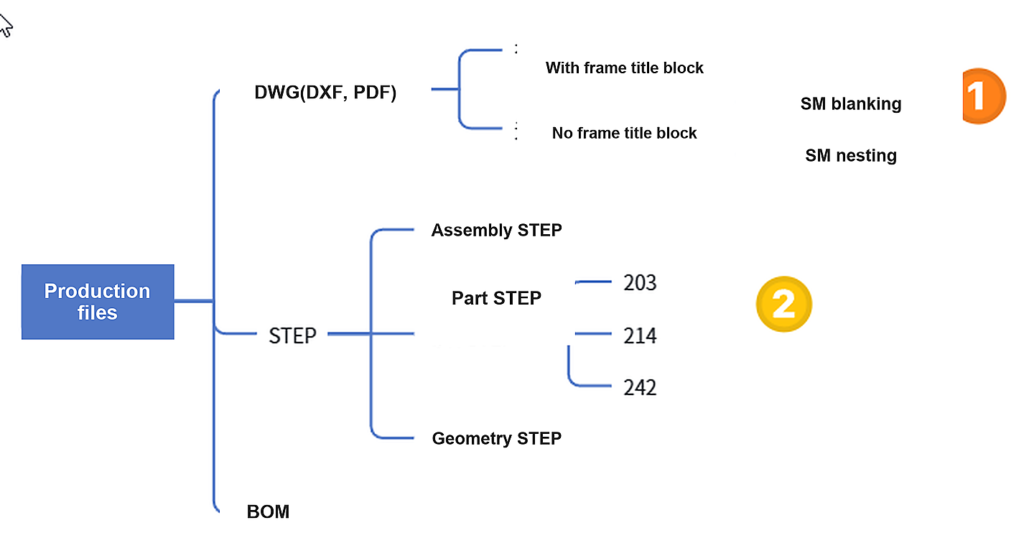
If every BOM change is followed by manual export from the designer, only half of the single-source benefit has been realized. The stronger workflow is to generate the required files from delivery rules after the BOM changes, so each department can retrieve what it needs from its own view instead of searching through a hundred drawings.
SWTDO connects file types, naming rules, output locations, and BOM views. Design handles the drawing steps that require judgment; the remaining production-file steps follow the configured rules.
Implementation checklist
- Name the real users of each BOM view before choosing a template.
- Let administrators define field ranges and valid values.
- Remove fields that do not support a real business decision.
- Separate part properties, assembly quantity, configuration, keys, calculations, and attachments by source.
- Give each file a unique identity and build BOM views from tags.
- Keep structural hierarchy separate from delivery hierarchy.
- Use cloud queries and writes to eliminate repeated copying.
- Automate production output while retaining the drawing checks that require human judgment.
A BOM should model how the company collaborates with downstream teams, not how many columns a template can hold. Once field scope, unique identity, and delivery views are correct, purchasing, production, inventory, and file output have a stable foundation. For a related discussion of the single source of truth across design, purchasing, and assembly, read Which Stage Consumes the Most Effort from Design to Assembly?.