
Title-block formats, layer changes, mapped colors, BOM parameter columns—one button handles them all.
The SWTDO Team Collaboration Module unifies design-output settings and templates across an enterprise. Administrators configure TDOServer; client PCs then use the shared settings and SWTDOT templates so that every user produces consistent output.

Purpose and prerequisites
Purpose: Unify the design-output format for every user in the enterprise and reduce the learning cost of SWTDO and SWTDOT template configuration to near zero.
Implementation: The administrator stores the required TDO settings and SWTDOT templates on the server. Client PCs use those server-side settings and templates, which unifies all output.
Prerequisite: Every user must have a Job ID that is unique across the enterprise.
General and personal settings
Team Module TDO settings are divided into general settings and personal settings.
- General + personal: If the code-element sequence must include Extension 1 and the Job ID, every user must include both fields, for example
Development_A02 G001h _Flange v1.sldprt. Users may define the content of Extension 1, such as changing “Development” to “Engineering.” - General: The file-category prefix for injection-molded parts is Z for everyone.
- General: In CutList annotations, replace the bounding-box length with cut length.
- Personal: The saved element composition used by Quick Rename follows the individual user.
- Personal: The SWTDOT template path follows the individual user.
Local and Ent interfaces
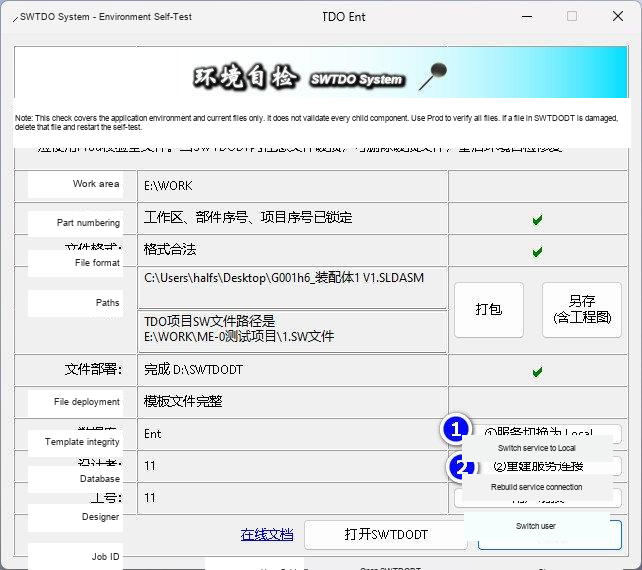
- Local interface: Equivalent to standalone operation, but the client can download settings and SWTDOT templates from the server. Updates are not real time.
- Ent interface: Settings and templates are always obtained from the server and require a continuous server connection.
Only the Ent interface supports the Class Library, Fastener Library, and Assembly Speed-Up.
Team network architecture
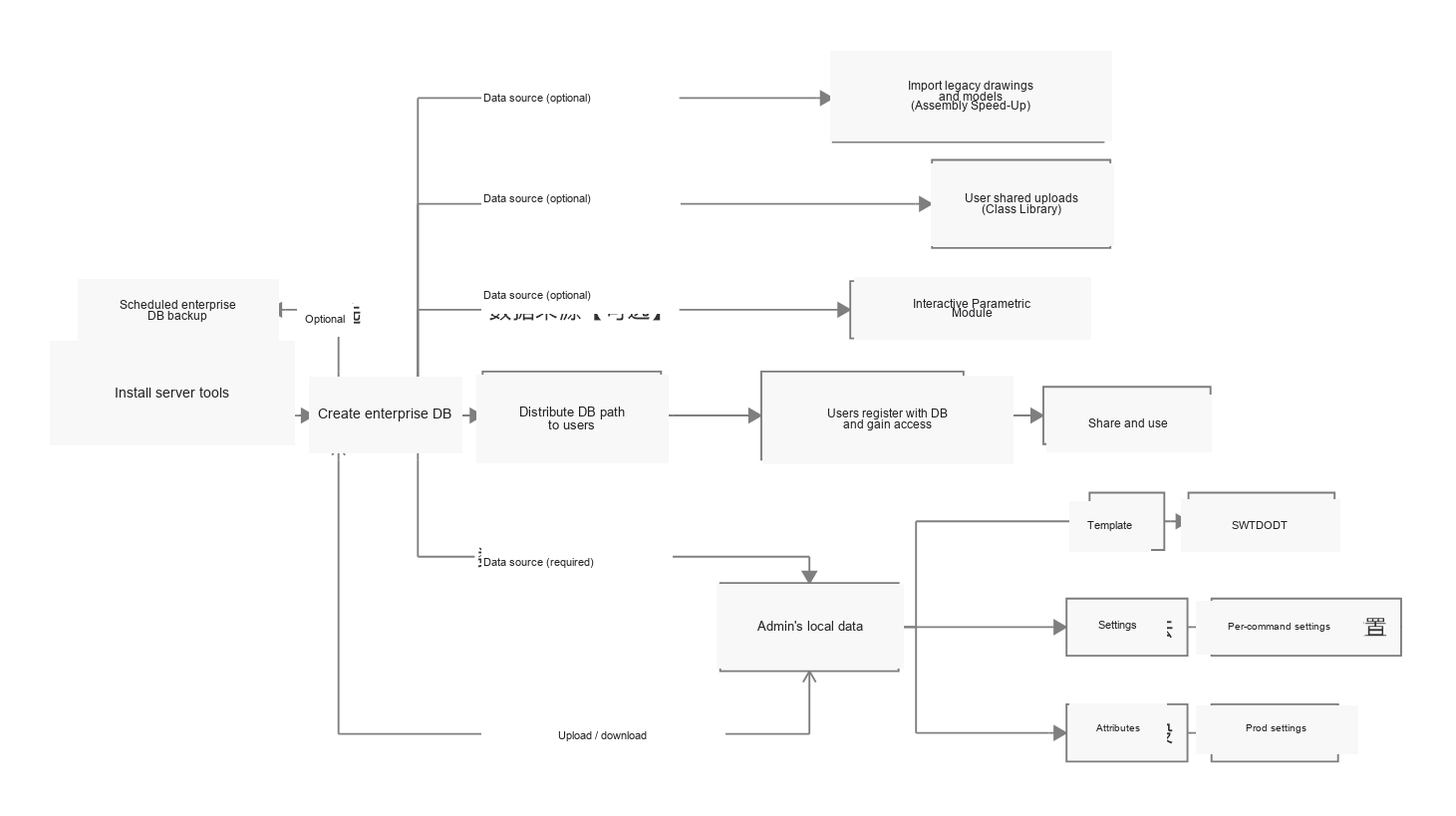
Plan A (recommended)
Use a dedicated PC as the server. It does not need SolidWorks, and it does not require high hardware performance.

Plan B
Install TDOService on an existing PC. Plan A and Plan B are functionally equivalent if the PC running TDOServer can run continuously and enterprise data-security concerns are acceptable.

Purpose of TDOServer
- Replicate all SWTDOT settings and templates from one PC. With the Ent interface, replication is immediate.
- Provide the required network service for every enterprise module.
- Single-user Personal edition: not required.
- Multi-user Personal or Enterprise edition: unifies settings, templates, and output.
- TDO Enterprise beta users: required even when the client is installed on the same PC as the server.
- Enterprise editions with paid modules: required.
Setup procedure
0. Start TDOServer
[Administrator / TDOServer] Start TDO Server.
1. Configure the database and network
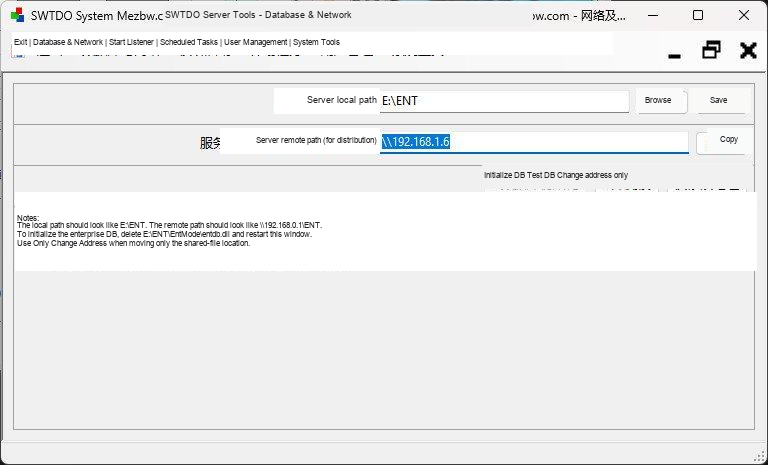
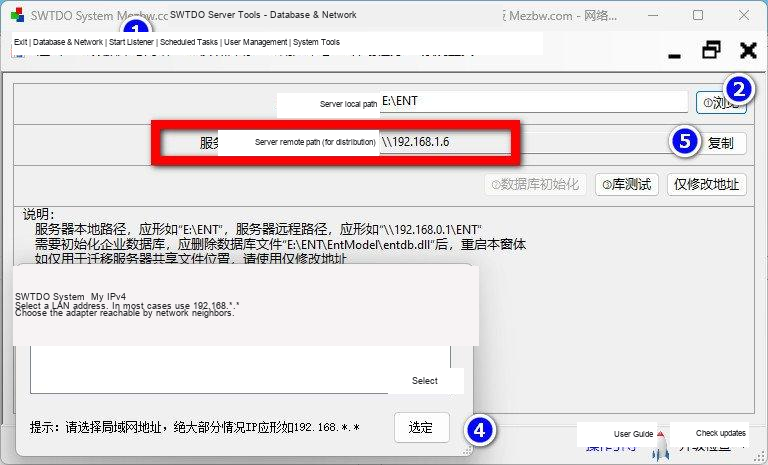
[Administrator / TDOServer] Open Database & Network. Select the enterprise database path, for example E:\ENT. If the server has multiple IP addresses, select the LAN address that network neighbors can reach.
2. Start the listener service
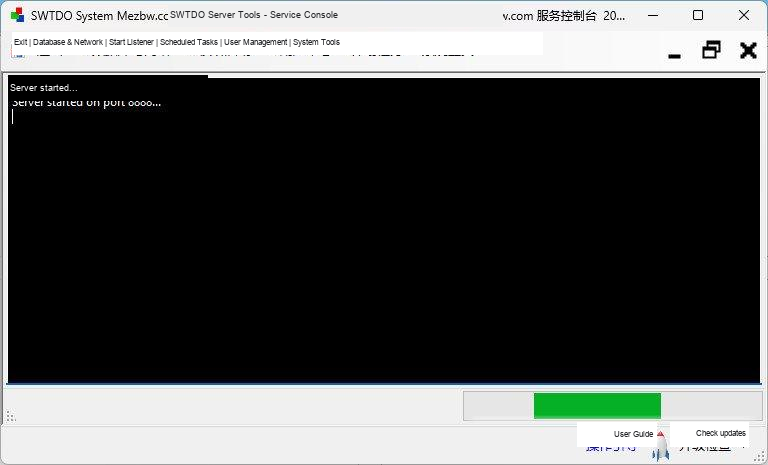
[Administrator / TDOServer] Start the listener service.
3. Configure an enterprise-library backup (optional)
[Administrator / TDOServer] Configure a scheduled task to back up the enterprise library. Select a backup directory on another computer or another disk.

The server also provides system backup and restore functions for its own configuration.

4. Keep the server running
Server setup is complete. The window may be minimized, but the program must not be closed or exited. TDOServer is intended to run continuously.
5. Configure the client server interface
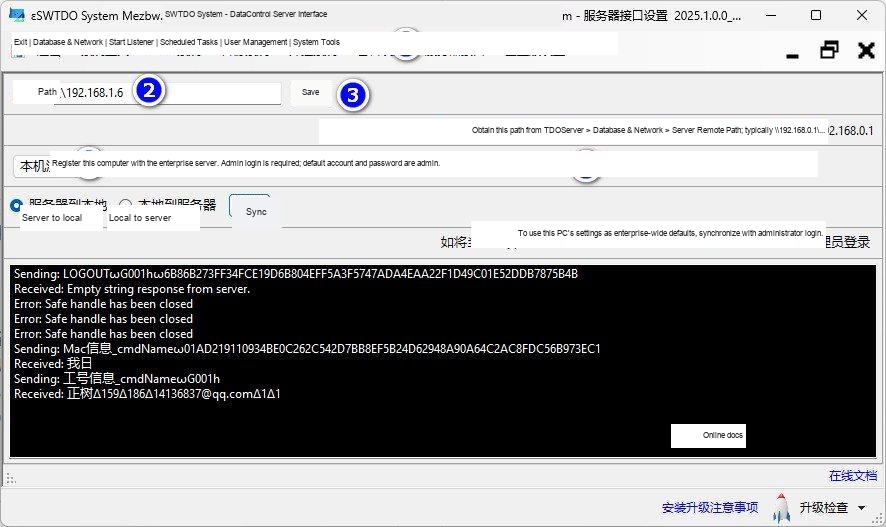
[User / DataControl] Open Server Interface, paste and save the distributed remote path, and register this computer with the enterprise server. Enter the administrator account and password. This login is separate from the normal user login and should be performed under administrator supervision.

6. Enter personal information
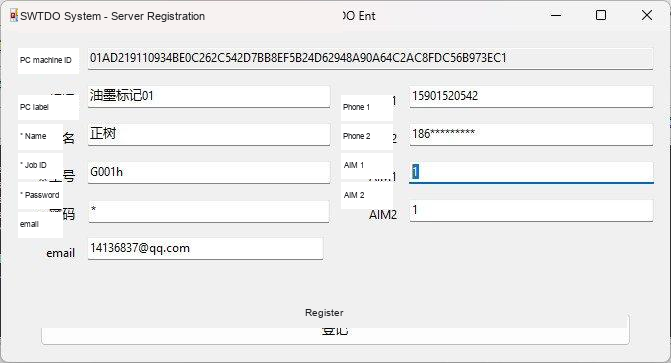
[User / DataControl] Newly registered users have read-only access by default. Users with paid enterprise modules should also complete step 9.
- Job ID: Must be unique across the enterprise.
- Name: Appears as the designer in drawings.
- PC label: Identifies which physical computer corresponds to the recorded hardware information. For example, write “PC 01” on the case.
- AIM: May contain QQ, WeChat, or another contact identifier.
7. Synchronize settings
[User / DataControl] Use Local to server for the administrator whose settings are the enterprise reference. Ordinary users should use Server to local.
8. Configure the Windows share (optional)
[Administrator / Windows server] If the local server path is E:\ENT and the server network address is \\192.168.1.6, share E:\ENT\swtdodt on the LAN.
Verify that users can open \\Z_PC\swtdodt or \\192.168.1.6\swtdodt in Windows Explorer.


9. Grant enterprise-module permissions
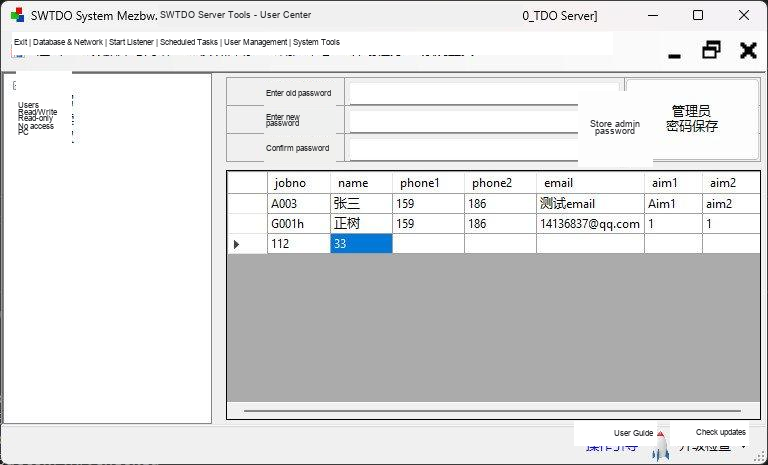
[Enterprise modules / Administrator / TDOServer] Open the User Center. Interactive Parametric, Class Library, Fastener Library, and similar modules require user permissions. Enterprise libraries may be built collaboratively, so selected users need upload rights.
Users registered in step 6 have read-only access by default and cannot contribute to the shared library.
10. Configure Assembly Speed-Up (paid license required)
[Administrator / TDOServer] Assembly Speed-Up uses a scheduled task to scan existing enterprise libraries. It scans *.SLDPRT part files only and does not scan assemblies.
If a drawing with the same name exists beside a part, the Assembly Speed-Up U-side downloads both files.
Scan time depends on library size and may take tens of minutes. Multiple paths and subdirectories may be added; child folders are included automatically.

Permission levels
Full use of every module requires read/write access. Read-only users can read resources. Users without access cannot use any enterprise resource. Read/write users can manage resources created under their own Job ID but cannot manage another user’s resources. A PC with a module C-side token can manage all resources in that module.

Usage
Local interface
Complete steps 0–7 to download all SWTDOT settings and templates from the server. The client then operates in standalone mode and TDOServer may be closed.
Ent interface
Step 8 is mandatory. All settings and SWTDOT templates are obtained directly from the server. TDOServer must continue running with the listener service active.
Enterprise modules
- Class Library, Fastener Library, and Assembly Speed-Up enterprise users must use the Ent interface.
- The Interactive Parametric Module can retrieve parametric equation data only through the Ent interface. The module also supports local equation check-in, so it can otherwise run through the Local interface.
Part and project numbering
Central server-side allocation requires the Ent interface and cannot operate standalone. SWTDOT therefore no longer uses a shared numbering service. The numbering format is changed to Job ID plus a running sequence number, which makes the Job ID a mandatory Team Module element.
Related modules
Front-end Generation
Cluster Mark
Equation Check-in
Equation Check-out
Class Library
Assembly Speed-Up
Project Management
Video: Team Module demonstration